How do I keep a diagram accessible after SVG to PNG?
Export the PNG for the visual, then provide the diagram's meaning separately in real text. Give the image a short, purpose-specific alt description. For a chart or multi-step diagram, add the essential values, order, and relationships in nearby text or a table. A PNG download alone does not create those descriptions.
Convert an SVG to PNGA small example with a real text equivalent
This original example shows a review flow: draft, review, then publish. The review decision can return the work to draft. Color is not the only cue: the stages and return path are labeled in the graphic and repeated below it.
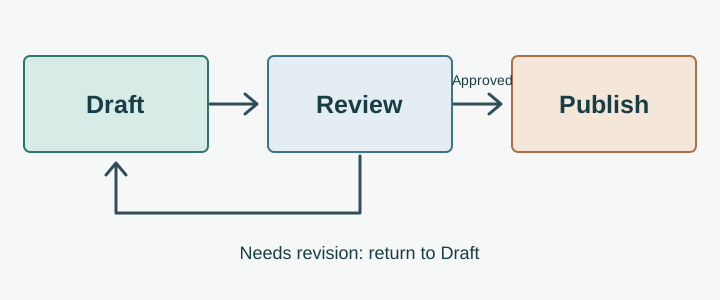
- Start with a draft.
- Review the draft. If revisions are needed, return to the draft and review it again.
- When approved, publish.
If this were a PNG on your own page, the alt would identify its purpose and the adjacent list would retain the full flow. The SVG shown here is only an original demonstration asset; export your own source graphic with the converter.
What to write for your image
| Image purpose | Short alt | Nearby text |
|---|---|---|
| Simple icon with a visible text label | Often empty if the label already says the same thing | Keep the label as real text. |
| One-step informative diagram | State the action or conclusion, not merely its colors or shapes. | Add context only if the short alt cannot convey it. |
| Chart or branching process | Identify the chart or process and point toward its explanation. | Provide the values, sequence, branches, or comparisons needed to understand it. |
| Image used as a link or button | Name the action or destination. | Make the control's purpose clear without relying on the pixels. |
These distinctions follow the W3C WAI Images Tutorial and its complex-images guidance. Choose the alternative based on the image's actual role in your page, not solely on its file format.
Put the PNG and explanation on a page
After exporting the PNG, rename it descriptively and replace the filename and wording below with facts about your diagram. Do not copy the example's flow if your image says something else.
<figure>
  <img src="review-flow.png"
       alt="Draft moves to review; revisions return to draft, and approval leads to publication.">
  <figcaption>Review flow. Start with a draft. Review it; return to
    the draft when changes are needed. Publish after approval.</figcaption>
</figure>
For a data chart, a structured table beside the image can preserve exact values and labels better than a long unstructured alt paragraph. W3C also recommends making complex descriptions available to everyone in the surrounding content.
Check the exported result
- Preview your SVG in the converter and choose the PNG width and background for its placement.
- Download the PNG, insert it into the actual page or document, and zoom to the intended viewing size.
- Read the page with the image hidden or unavailable. Can someone still follow the important steps or values from your text?
- Check that the visible graphic, alt, and nearby explanation agree after every diagram revision.
The converter creates the visual PNG locally in your browser; it does not insert alt text into a website or document for you. Add the description in the destination editor or markup.
FAQ
Does changing SVG to PNG automatically preserve its text for readers?
No. Treat the PNG as an image and supply text alternatives in the place where it is published.
Should I put every chart value in the alt attribute?
Usually keep the alt concise and place the full values in nearby structured text or a table. See the W3C guidance for complex images.
Can I leave the alt empty?
For a purely decorative image, yes. Do not use empty alt when the image carries information that the surrounding text does not provide.