How do I turn an SVG into a Discord sticker?
Make a square SVG with a simple, readable subject, then export a static 320 x 320 PNG with transparent corners. Open the downloaded PNG to check the actual dimensions, transparency, and file size before uploading it as a custom sticker. Test the uploaded result in chat; a PNG export alone does not create an animated sticker.
Convert an SVG to PNGPrepare a sticker, not a miniature poster
Start with a square SVG artboard. Keep the expression or gesture recognizable when the artwork is reduced. Tiny lettering, thin outlines, and elaborate background scenes can disappear in the sticker drawer. The sample below is a generic, original shape: the dotted boundary represents the artboard, while the inner mark has room to breathe. It is not a Discord asset.
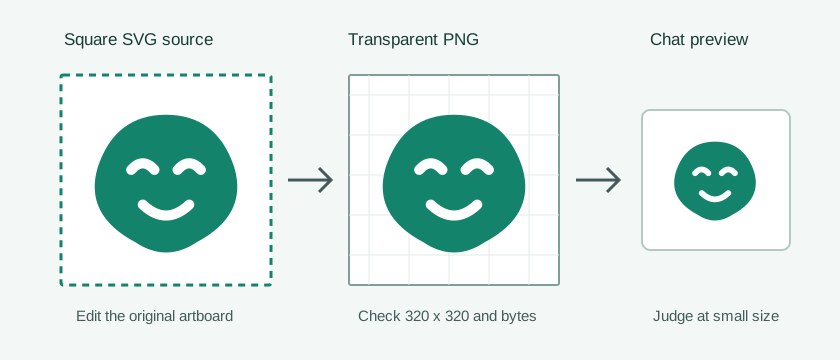
Do not add a colored square merely to hide a transparency problem. If the intended sticker has a cutout edge, export with transparency and inspect the corners in the downloaded file. A deliberate solid background is also possible if it is part of the design.
Export the exact static PNG
- Open the square SVG in the converter and check that no off-canvas element changes its visible bounds.
- Select Custom width, enter 320, keep the aspect ratio locked, and leave scale at 1x. A square source should yield a 320 x 320 PNG; verify the downloaded file rather than assuming it did.
- Choose Transparent under Background, convert, and download. Reopen the PNG on light and dark backgrounds to inspect the edge and small details.
- Check the actual byte size in your file manager. The converter does not guarantee a target file size. If the PNG is too large, simplify the source or optimize the PNG separately, then inspect it again.
Discord's sticker creator guidance specifies an exact 320 x 320 image and a maximum file size of 512 KB for a custom sticker. Its upload guide lists PNG for static stickers. Recheck those pages when you upload, since platform rules can change.
Check the handoff inside Discord
Having a correctly sized file does not grant permission to add stickers to a server. If you have the relevant server permission and a sticker slot, use the server's sticker settings to upload the PNG. Choose an associated emoji and add a concise description where available, then inspect it in the drawer and in a real message. Discord's custom stickers FAQ explains that replacing the sticker image requires deleting and re-uploading it, so keep the editable SVG and a tested PNG together.
Handoff check: square source; downloaded static PNG at 320 x 320; file size within Discord's current limit; clear silhouette on light and dark surfaces; permission and available slot; uploaded result checked in chat.
Keep a source such as reaction-source.svg and its matching export reaction-sticker.png. If the design changes, edit the SVG and export again.
FAQ
Can this converter make an animated Discord sticker?
No. It exports a still PNG from the SVG's rendered state, not an APNG or animated GIF. Use an animation workflow for animated stickers and follow Discord's current requirements.
Why is my sticker small inside its square?
The SVG may contain too much empty space around the subject. Adjust the artboard or scale the artwork within the SVG, leaving a deliberate margin, then export again at the required size.
Why does an upload fail even though the PNG is square?
Check its exact pixel dimensions and byte size, then verify your server permission and available sticker slots. A square aspect ratio alone does not prove that the image meets every upload requirement.