Should I convert an SVG to PNG before adding it to Notion?
Keep the SVG when you want a scalable vector and Notion accepts it; export a PNG when the handoff needs fixed pixels, predictable transparency, or a known raster preview. Check the downloaded PNG at the size you intend to show, then upload that file as an image block and inspect the rendered page.
Convert an SVG to PNGChoose the format for the handoff
Notion's current image and file documentation lists both SVG and PNG among its supported file types. That means conversion is not automatically required. Keep the original SVG when collaborators may need to zoom a diagram or when the vector is the authoritative source. Use a PNG when a downstream reader, export, screenshot, or review checklist expects a raster image with fixed dimensions.
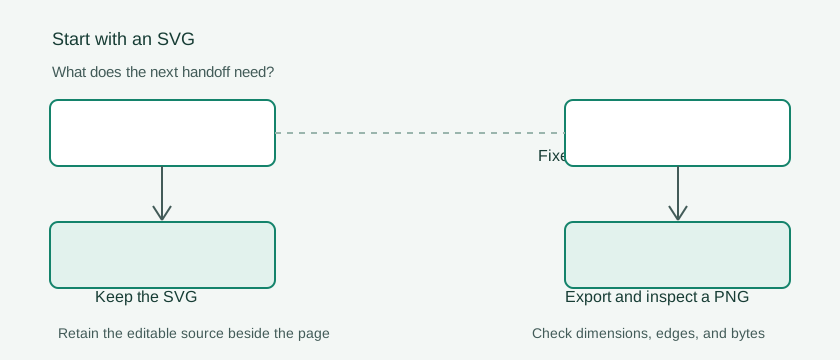
Do not convert merely because the page contains an image block. First decide whether the recipient needs editability and scale or a stable pixel rendering. Keep the SVG next to the PNG so you can revise the source instead of editing a small raster copy.
Export a predictable PNG
- Open the SVG and check its viewBox, visible bounds, and transparent edges. Remove stray objects that make the artwork appear unexpectedly small.
- Select Custom width and choose the pixel width that matches the intended Notion layout. Keep the aspect ratio locked; do not stretch the image to fit a column.
- Choose Transparent when the artwork needs to sit on the page background. Choose a solid background when the design depends on a controlled color and the page background may change.
- Convert, download, and reopen the PNG. Check its pixel dimensions, transparency, legibility at the displayed size, and actual file size before uploading it.
Notion's help page says free-plan uploads must be under 5 MB and lists PNG and SVG as supported types. Check the current limits for the workspace and plan you are using before a large upload. The converter creates the PNG but does not promise a particular byte size.
Upload and inspect the page
In Notion, add an Image block or drag the PNG into the page. Compare the uploaded image with the downloaded file: look for a clipped edge, an unexpected background, a soft line, or text that became too small. Resize the block only after the source image looks correct. If the image is reused in a database or gallery, inspect that presentation too because the available width may differ.
Handoff checklist: source SVG retained; output width chosen for the destination; aspect ratio preserved; background intentional; downloaded PNG reopened; file size checked; Notion block inspected at its final page width.
If the PNG looks soft, export again at a larger pixel width and resize it down in the page. If the artwork changes, return to the SVG rather than scaling a previously rasterized copy.
Keep a clear filename such as roadmap-diagram-source.svg beside roadmap-diagram-notion.png so the team can tell which file is editable and which file is the fixed handoff.
FAQ
Does Notion require SVG files to be converted to PNG?
No. Notion's current help documentation lists SVG and PNG as supported file types. Convert only when your workflow needs a fixed-pixel raster or the next recipient does not accept SVG.
Why does my PNG look smaller than the SVG?
The SVG may contain extra whitespace or a viewBox larger than the visible artwork. Check the source bounds and export a deliberate pixel width rather than relying on an automatic size.
Why is a transparent PNG showing a box?
Inspect the downloaded file on both light and dark backgrounds. The box may be part of the SVG, a deliberate background, or a viewer's preview. Fix the source and export again if the background is not intentional.