How many pixels should a printed SVG become?
Multiply the finished print width and height in inches by the target DPI, then export the SVG at those pixel dimensions. For example, a 4 by 6 inch image at 300 DPI needs 1200 by 1800 pixels. Preserve the artwork's aspect ratio and check for transparent padding before sending the PNG to print.
Convert SVG to PNG at a chosen size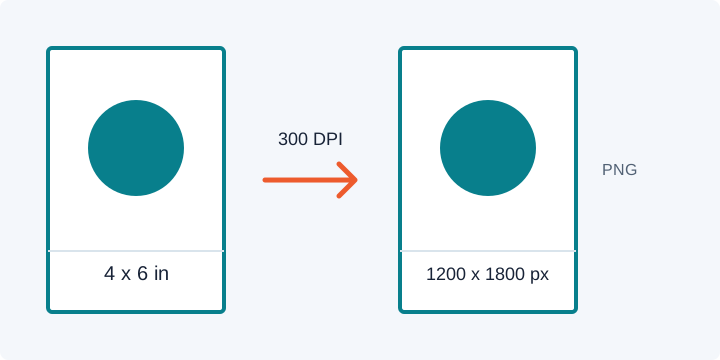
Turn physical dimensions into pixels
pixels = inches x DPI
8.5 x 11 inches at 300 DPI: 8.5 x 300 = 2550 pixels wide; 11 x 300 = 3300 pixels high.
DPI is a print instruction, not a quality switch inside the SVG. A PNG contains pixels; the layout application or printer decides their physical size. If a print provider gives you exact pixel dimensions, use those instead of recalculating them.
If the calculated dimensions disagree with the SVG's aspect ratio, decide whether to crop, add margins, or change the print layout. Stretching the PNG changes the artwork's proportions.
Example sizes at 300 DPI
| Finished size | Pixel size | Check |
|---|---|---|
| 2 x 2 in | 600 x 600 px | Square artwork and canvas. |
| 4 x 6 in | 1200 x 1800 px | Keep a 2:3 aspect ratio. |
| 8.5 x 11 in | 2550 x 3300 px | Inspect thin lines and small text. |
| 3.5 x 2 in | 1050 x 600 px | Inspect transparent margins. |
These numbers come from inches x 300, not from a printer specification. Follow the receiving print service's requirements when available.
A correct canvas can still contain a tiny logo
A large SVG viewBox with a small centered logo creates a PNG with the same empty space. Increasing the export resolution produces more pixels around that space; it does not crop it.
- Compare the visible artwork edges with the SVG canvas in the preview.
- Decide whether the empty area is an intentional margin, bleed, or accidental padding.
- For accidental padding, fix the source viewBox or artwork bounds in a copy.
- Choose transparency for compositing, or white only when the destination requires a solid background.
Verify the downloaded PNG, not only the SVG preview
- Get the finished dimensions and target DPI from the print specification.
- Calculate width and height in pixels. Resolve any aspect-ratio mismatch before converting.
- Choose Custom width and Keep ratio in the converter. Check the preview for edges, text, and unexpected space.
- Choose a transparent or white background according to the destination requirement.
- Convert, download, and open the PNG. Inspect its actual pixel dimensions before placing it in a print layout.
<svg xmlns="http://www.w3.org/2000/svg" viewBox="0 0 600 400">
  <rect width="600" height="400" fill="#087f8c"/>
  <circle cx="300" cy="200" r="110" fill="#ffffff"/>
  <path d="M245 205l38 38 75-88" fill="none" stroke="#ed5b2d" stroke-width="24" stroke-linecap="round" stroke-linejoin="round"/>
</svg>
This sample has a 3:2 ratio. At 1800 pixels wide, a proportional export is 1200 pixels high. Paste it into the converter to test a known ratio before using your own print artwork.
Print and PNG questions
Is 300 DPI always required?
No. Use the print provider's specification when available; the formula translates its target into pixels.
Can I send the SVG instead?
Sometimes. If the recipient explicitly requests a PNG, export and verify the requested pixel dimensions. Renaming an SVG does not convert it.
Why does the printed logo look small?
Inspect transparent padding in the SVG viewBox. The PNG may have the correct total dimensions while the artwork fills only part of its canvas.
Calculate the print pixels, then preview the result.
Open the SVG to PNG converterPublished October 12, 2026.