How do I convert a QR-code SVG to PNG?
Keep the QR-code SVG square, preserve a clear quiet zone of four modules on every side, and export the PNG at an integer number of pixels per module. Choose a solid, high-contrast background, inspect the downloaded image at its final display size, and scan that actual image before publishing it. A valid-looking PNG is not proof that the code scans.
Convert an SVG to PNGCheck the source before rasterizing
The QR code's blank margin is part of the scanning area, not decorative whitespace. DENSO WAVE's QR Code area guidance specifies a four-module quiet zone on all sides. If the source SVG crops to the dark squares, enlarging it in a converter will not restore that missing margin. Add the margin in the QR generator or source design first, then export.
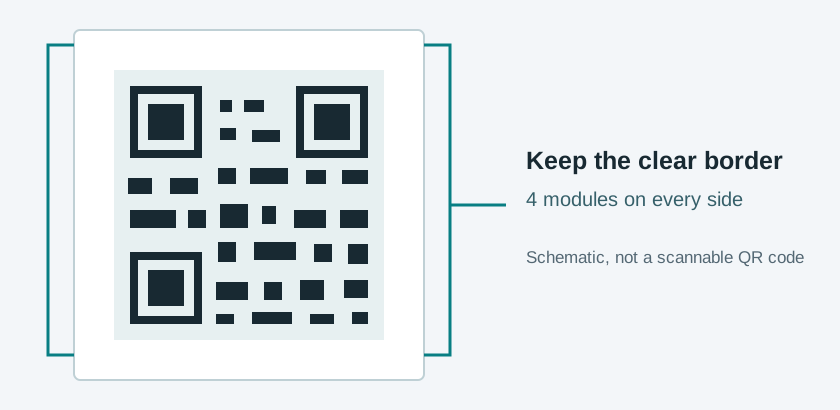
- Confirm that the SVG has a square viewBox and that the entire code, including its light margin, fits inside it.
- Inspect the four edges for labels, borders, shadows, or adjacent artwork intruding into the quiet zone.
- Check that dark and light areas are opaque and clearly distinguishable against the destination background. Do not rely on a transparent preview's checkerboard as the final background.
Calculate a clean PNG size
Count the code modules across one side, then include the blank margin. If the code has N modules on a side, the complete image has N + 8 module widths: four blank modules on the left and four on the right. Pick an integer pixel width per module, P. Export a square PNG at (N + 8) × P pixels. This arithmetic helps avoid fractional resampling in the file; it is not a universal minimum scan size.
Illustrative calculation: 29 data modules + 8 margin modules = 37 modules across. At 4 pixels per module, export at 37 × 4 = 148 pixels square.
The 29-module example follows DENSO WAVE's version-three example. The 4-pixel choice is only an example, not a scanner specification or a promise of reliable reading.
In this site's converter, choose Custom width, enter your calculated square width, keep the aspect ratio locked, and choose a solid white background if the destination will not provide a reliably light one. If your QR generator already included the margin in the SVG, do not add it twice. Reopen the PNG to confirm the light margin is inside the file bounds.
Test the delivered image, not just the source
- Place the exported PNG in the actual email, slide, print layout, or page where it will appear. Avoid stretching it non-uniformly.
- View the final placement at the size people will see. Check the light margin, square modules, and contrast after any resizing or compression by the destination app.
- Scan with a phone in the intended lighting and viewing conditions. Check that the result opens the intended destination. Ask another person or device to test if the use is important.
- If it fails, return to the SVG or QR generator: restore the margin, increase the final physical/display size, remove visual overlays, or reduce the encoded content. Export and test again.
A successful test is specific to that version and placement. Re-test whenever a design tool resizes, crops, recolors, or re-exports the PNG.
Common failure checks
| Symptom | Check first | Next export |
|---|---|---|
| Code touches its container | Quiet zone missing from SVG or clipped by the layout | Restore the clear margin in the source, then export the whole square |
| Squares look uneven or soft | Fractional scaling between PNG pixels and code modules | Choose an integer-pixel-per-module export and avoid later resampling |
| Looks fine in preview, fails on a dark page | Transparent light areas inherited a dark background | Export with a solid light background and test the final placement |
| Scans in the editor but not after sharing | Destination resized, cropped, or compressed the image | Inspect and scan the downloaded or received version |
FAQ
Can I make a missing quiet zone by exporting a larger PNG?
No. A larger export scales the existing SVG. Add the missing clear margin around the code in the SVG or its generator first.
Should my PNG background be transparent?
Use a solid light background when you cannot control the destination background. If you do use transparency, test the actual page or document where the code will sit.
Does a square PNG guarantee a scannable QR code?
No. The encoded content, quiet zone, contrast, module clarity, displayed size, and final delivery all matter. Scan the delivered image.