How do I make a Slack emoji PNG from SVG?
Put one bold symbol on a square SVG artboard, leave breathing room around it, and export a square PNG with a transparent background. Check the actual PNG at small chat size on both light and dark surfaces, check its file size, then upload and inspect it in a real Slack message. Preserve your SVG for revisions.
Convert an SVG to PNGDesign for the tiny destination
A full-size logo can contain details that disappear when used as an emoji. Make a separate emoji variant in the SVG source: one recognizable shape, a deliberately thick silhouette, and space between the subject and the edge. Remove tiny captions and hairline strokes rather than expecting a larger export to rescue them. Keep the artboard square so the receiving app does not have to fit a wide banner into a small square.
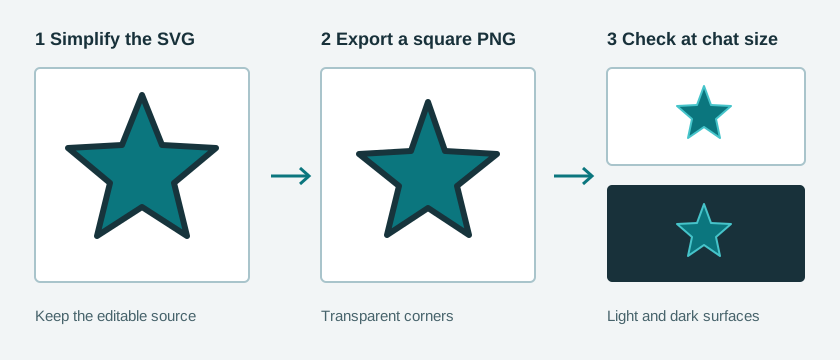
In the preview, compare the actual pixels against light and dark backgrounds. A pale shape can disappear in a light theme; dark edges can disappear in a dark theme. Add contrast in your source artwork if needed, then export again.
Export without losing the square
- Open the source SVG in the converter. Check the preview for stray objects that enlarge the bounds or clip the intended silhouette.
- Keep the aspect ratio locked. If the artboard is square, choose a square custom width. If it is not square, fix the SVG artboard first rather than stretching the PNG.
- Choose Transparent under Background. Convert, download, and reopen the PNG to inspect its actual transparent edges.
- Inspect the image at the size it occupies in a chat message, not just at 100% zoom in an image editor. Simplify the source and repeat if the shape becomes muddy.
The converter makes a PNG, but it does not compress files to a target byte count. Check the downloaded file's size in your file manager. If it is too large, simplify the SVG, try a smaller square output, or use a separate PNG optimizer and recheck the result. Do not mislabel a file by changing its extension.
Check Slack's current guidance
Slack's custom emoji help page says square images under 128 KB with transparent backgrounds work best and lists PNG among the supported formats. This is guidance, not a promise that every upload will be accepted. The same page notes that workspace owners may restrict who can add emoji. Consult it before preparing a batch, since product requirements can change.
Pre-upload checklist: square PNG; transparent corners; readable at chat size; file below Slack's published recommended byte size; recognizable on light and dark backgrounds.
Do not confuse pixel dimensions with file size. Width and height are measured in pixels; the downloaded file size is measured in bytes.
Test the received emoji
In a workspace where you have permission, open the emoji menu, choose Add Emoji, upload the downloaded PNG, name it, and save it. Then insert it in a test message and inspect it in both a reaction and a message. If it looks cramped or hard to read, change the SVG source rather than editing an already-downscaled PNG. Keep a simple filename such as status-ready-source.svg alongside status-ready-emoji.png so future revisions start from the vector.
This site has no connection to Slack and cannot test your workspace permissions or whether a particular name is available.
FAQ
Does Slack accept SVG as a custom emoji?
Slack's current help page lists JPG, PNG, and GIF for custom emoji. Export a PNG from your SVG source, and check the official help page again before upload.
Why is the PNG square but the symbol still tiny?
Empty space inside the SVG artboard counts toward its bounds. Fit the symbol within the square while leaving a deliberate margin, then export again.
Why does the exported emoji look fuzzy?
Very fine strokes and text can disappear at chat size. Simplify the original vector and check the final rendering rather than repeatedly enlarging a small PNG.