How do I turn an SVG into a link-preview PNG?
Design a landscape SVG with the important words and subject away from its edges. Export a PNG at its intended pixel dimensions, put it at a public URL, and set that URL as og:image on the page being shared. Then check the live page in a link-preview debugger and on a phone. Conversion alone does not attach the image to a link.
Start with a crop-aware composition
This original diagram is a layout exercise, not a platform-certified template. The outer frame is an example 1200 by 630 canvas; the dashed inner box is a deliberately generous working area. Keep the logo, headline, and subject inside it. A service can display a different crop or overlay, so inspect the actual destination before publishing.
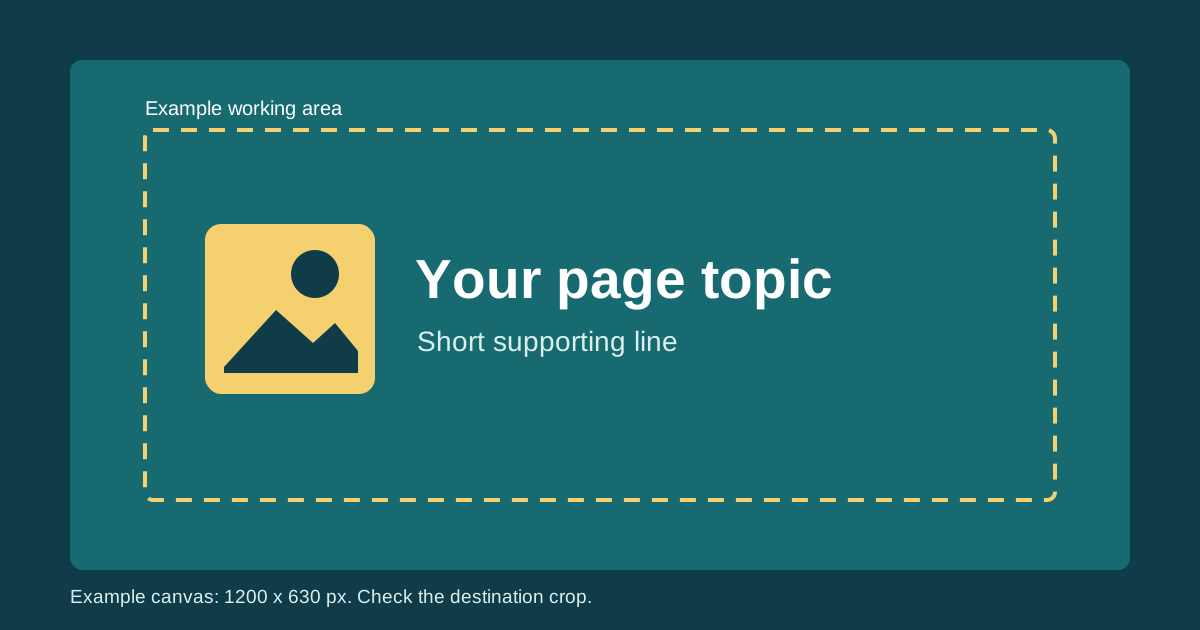
Make the background opaque if your artwork might disappear on a dark or light surface. Preview the export at a small card size too: a crisp full-size PNG can still have unreadable tiny lettering when scaled down.
Export and publish the PNG
- Set an explicit width, height, and matching viewBox in the SVG. For this particular example, they are 1200, 630, and
0 0 1200 630. Use the dimensions required by your destination when they differ. - Open the SVG in the converter. Choose the matching PNG dimensions, select a solid background if needed, inspect the preview, and download.
- Open the downloaded PNG at actual size and thumbnail size. Check its text, contrast, and the empty space around the important content.
- Upload the PNG to a publicly reachable HTTPS path on your site. Open that exact image URL in a fresh tab to verify the file is accessible without signing in.
The converter handles one SVG in your browser; it does not upload or host the resulting PNG for you. Also, do not assume every preview service will accept an SVG URL in place of a PNG.
Attach it to the page being shared
In that page's <head>, point the Open Graph image property to your published PNG. Replace all example domains and file names with your own. The image width and height are metadata for this sample export, not a universal requirement.
<meta property="og:title" content="Your page title">
<meta property="og:type" content="website">
<meta property="og:url" content="https://example.com/your-page">
<meta property="og:image" content="https://example.com/images/your-preview.png">
<meta property="og:image:width" content="1200">
<meta property="og:image:height" content="630">
<meta property="og:image:alt" content="A short description of the actual image">
The Open Graph protocol defines og:image and optional structured properties such as width, height, and alt. These tags are separate from an ordinary page image's HTML alt attribute.
Check the live share, not just the source file
| What you see | What to inspect |
|---|---|
| No image | View the deployed page source for the exact og:image URL; open the PNG URL directly and check that it is public. |
| Wrong image | Make sure the metadata is on the shared page, not only on a different page. A preview cache may also still hold an earlier image. |
| Important text is cropped | Move it inward in the SVG, re-export, publish the revised PNG, and check the destination preview again. |
| Text looks soft | Check the exported pixel size, source font rendering, and real display size. Avoid stretching a small PNG. |
Run the shared page URL through the destination service's official preview/debug tool when available; do not test only the direct PNG URL. A cached preview may need time or an official refresh tool to update. Compare the desktop card and mobile card before considering the job done.
FAQ
Does converting SVG to PNG automatically create a social preview?
No. The PNG must be hosted and referenced by metadata on the page that someone shares.
Is 1200 by 630 mandatory everywhere?
No. It is an example landscape export in this guide. Preview surfaces vary; check the current guidance and actual crop for your destination.
Can I use a transparent background?
You can export one, but a solid background is more predictable when another service chooses the card's backdrop. Test the final preview.